Instructions for using EM Portal
1.1 Getting started with EM Portal (method No.1 creating a wallet through the portal)
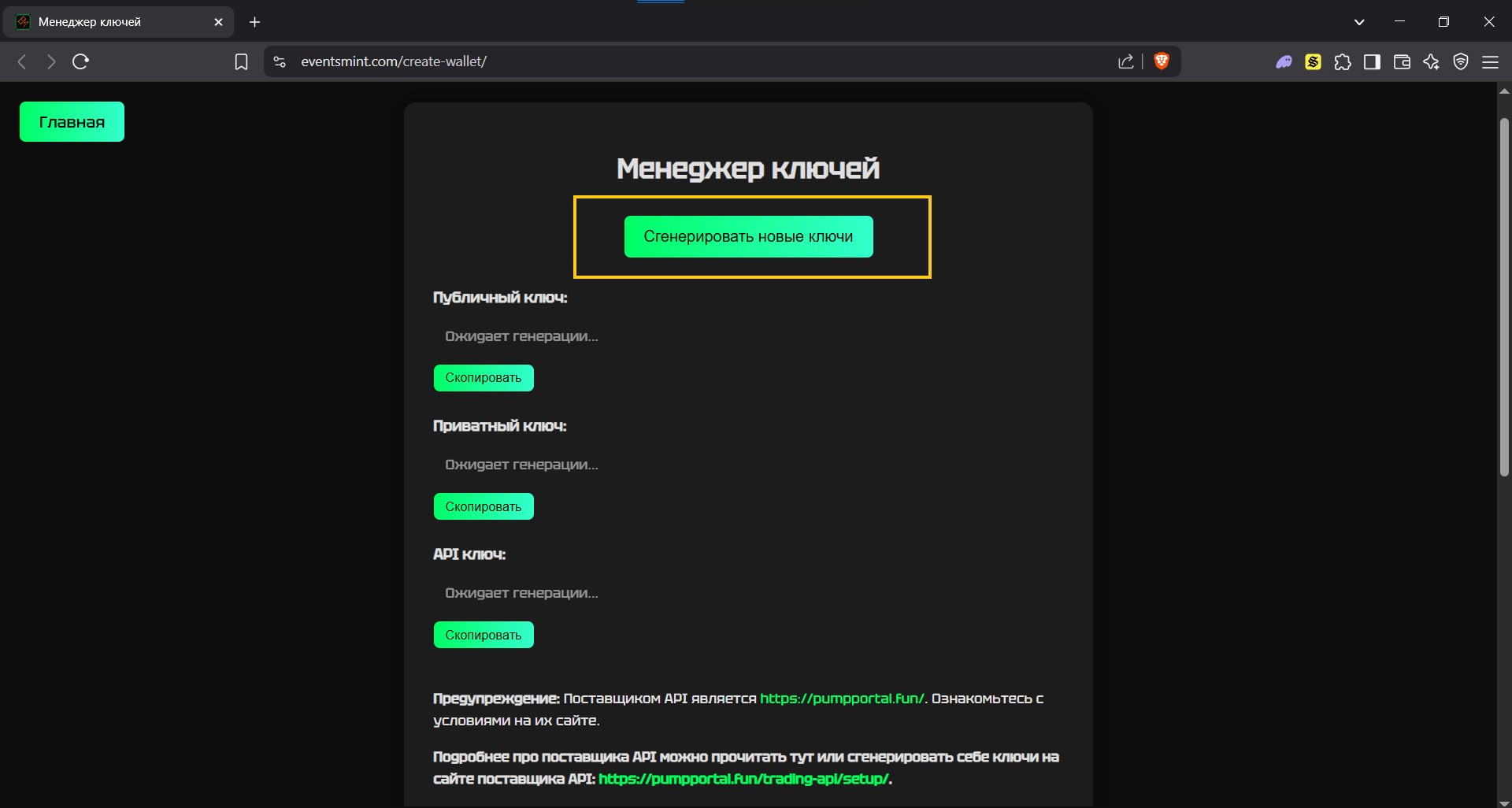
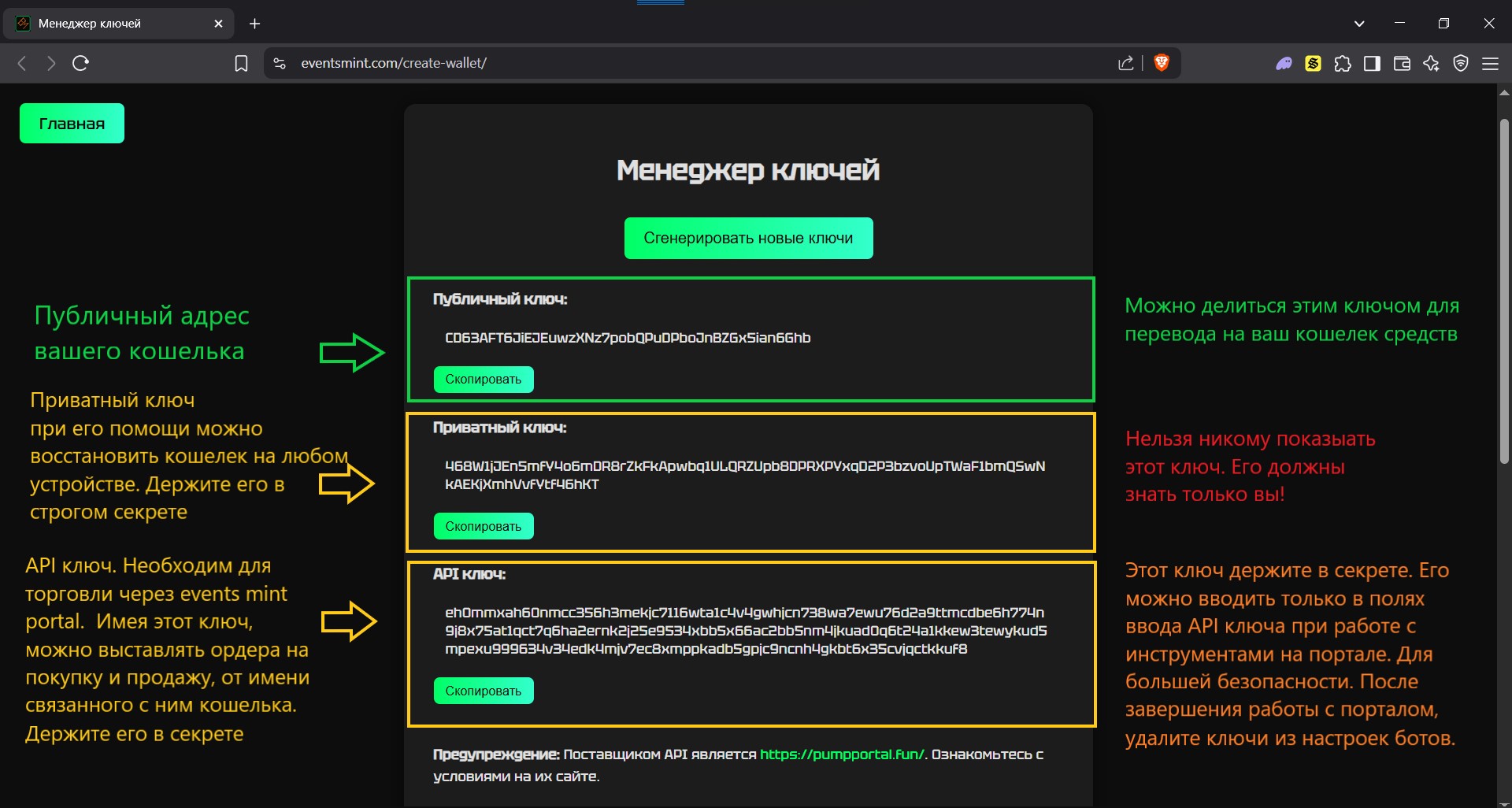
1.1.1 Open the tab "Generate keys" located on the main page https://eventsmint.com/create-wallet/ and generate:
- Private key (private key is your main secret. Keep it in a safe place. Do not tell anyone about it.)
- API key (key for placing trading orders. Allows you to make transactions from your account. Required for working on the portal.)
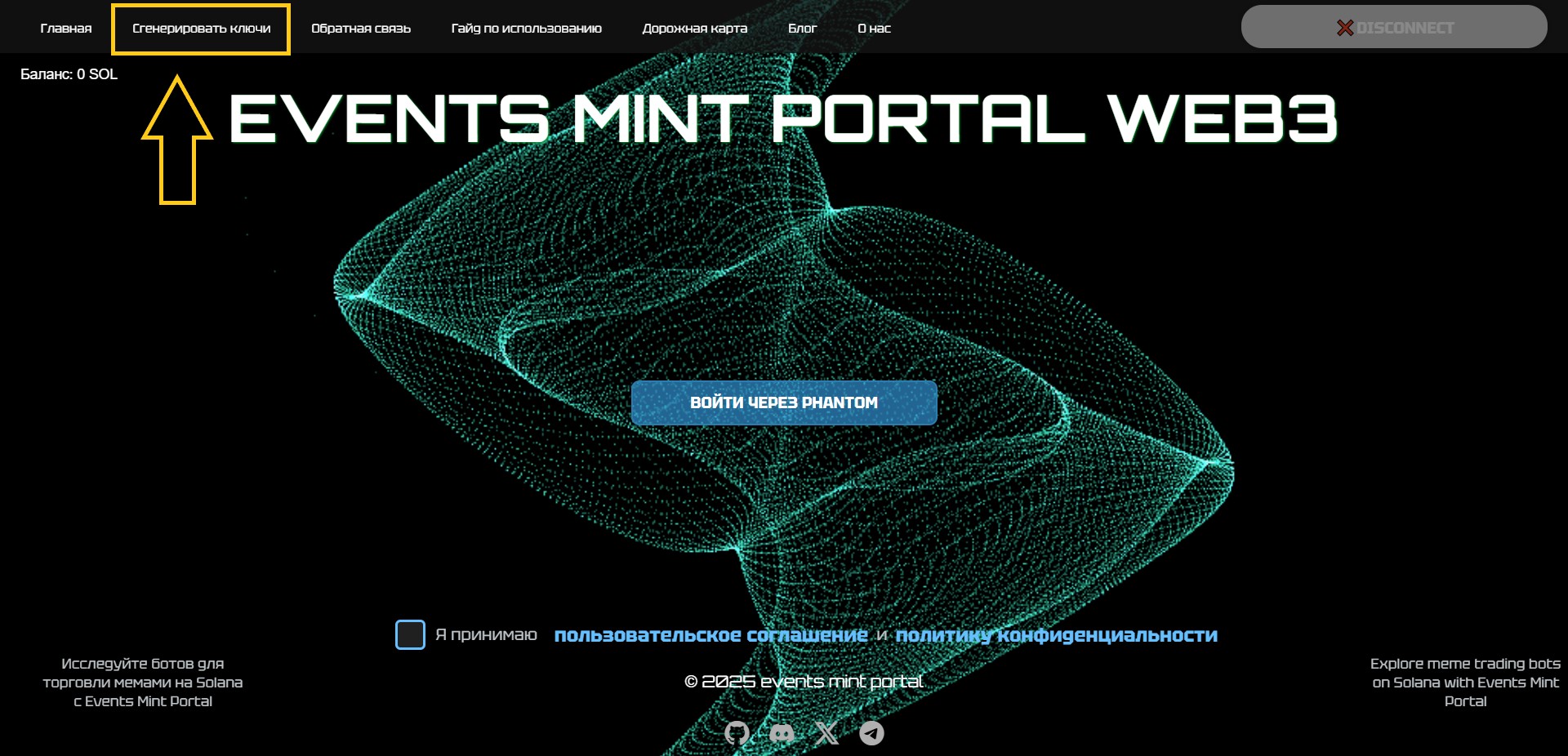
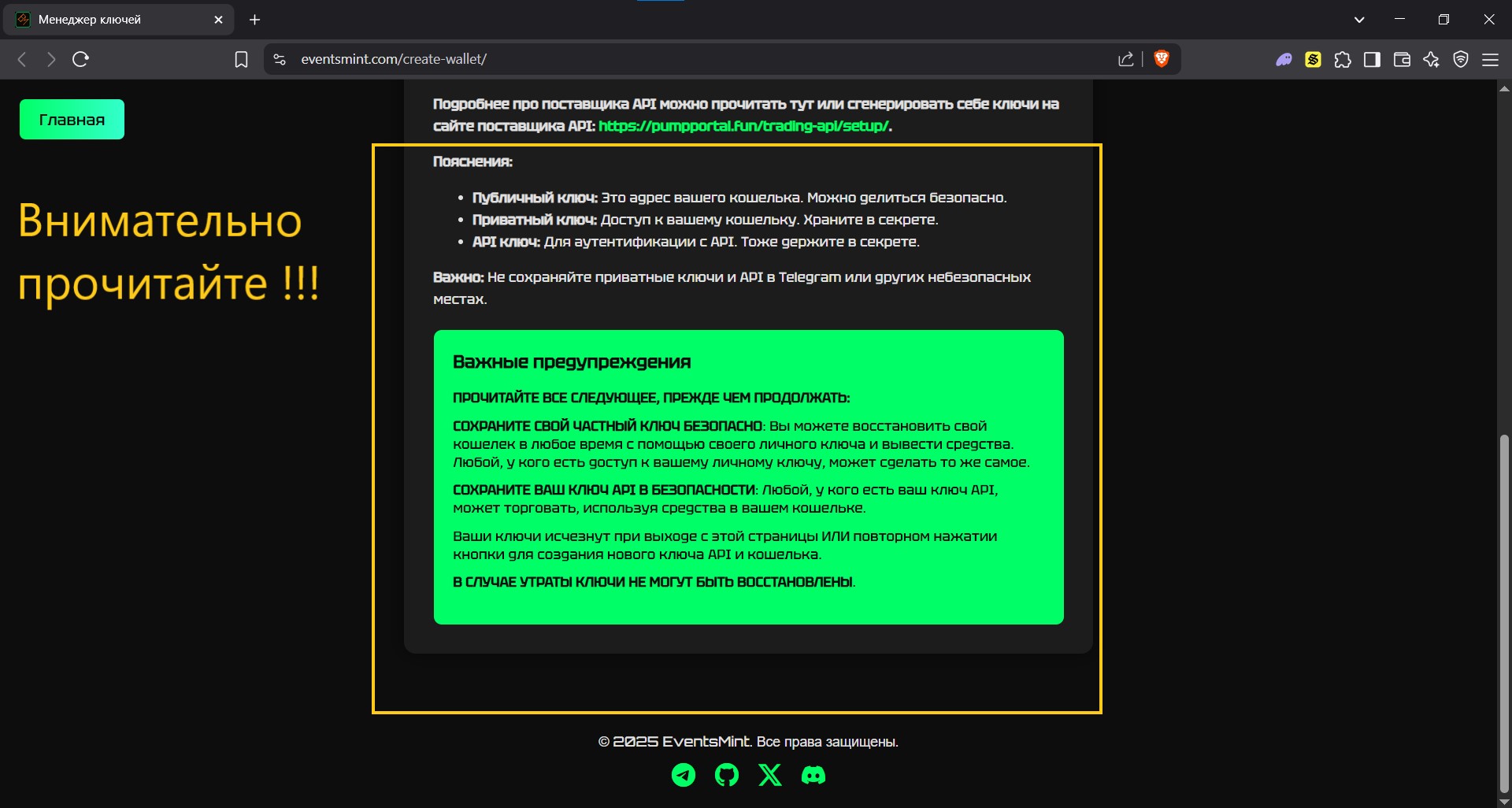
1.1.2. Install the Phantom wallet from the browser extensions store or from the developer's official website.
IMPORTANT! Make sure the source is authentic. Do not install extensions from unverified places.
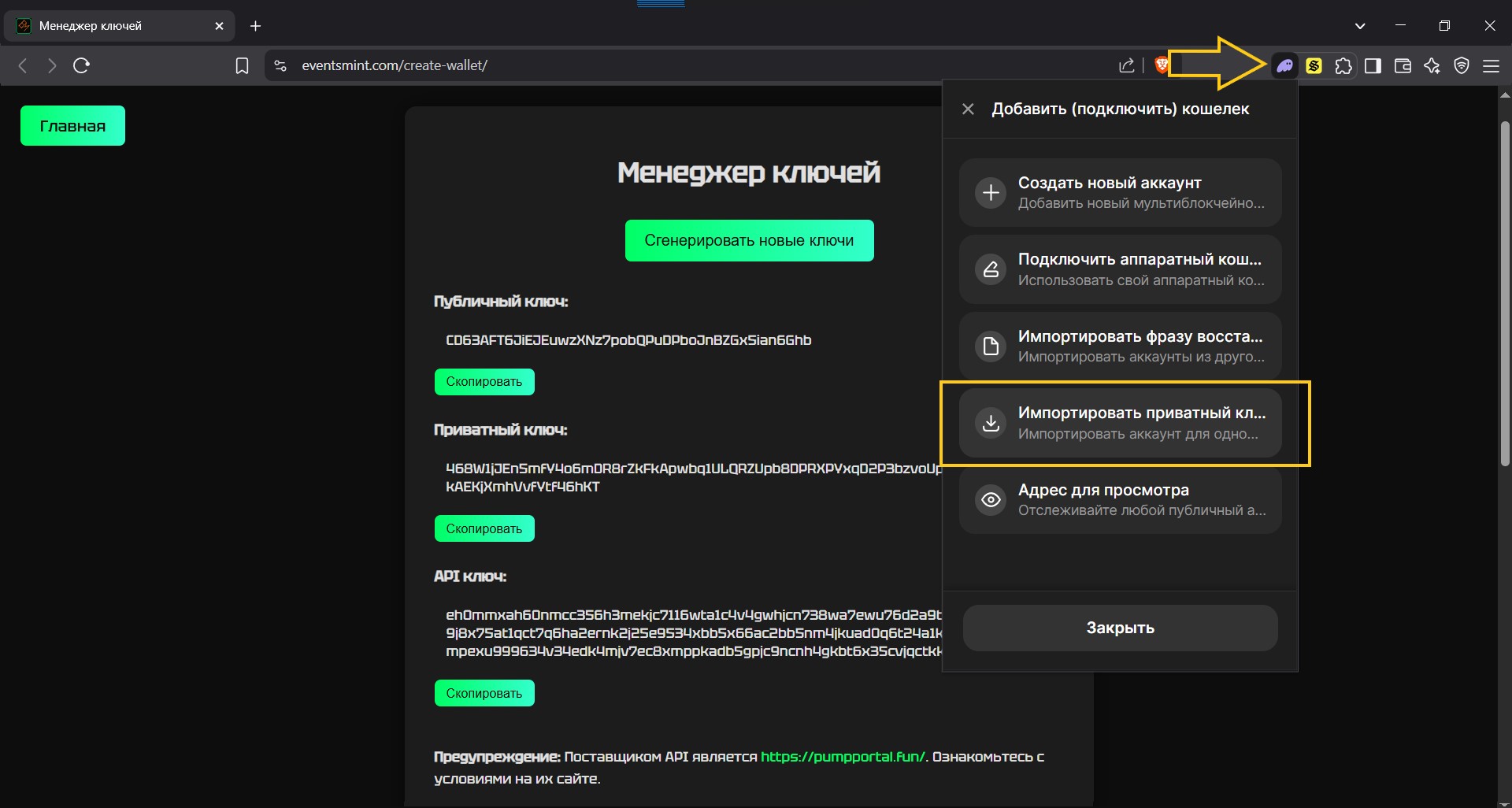
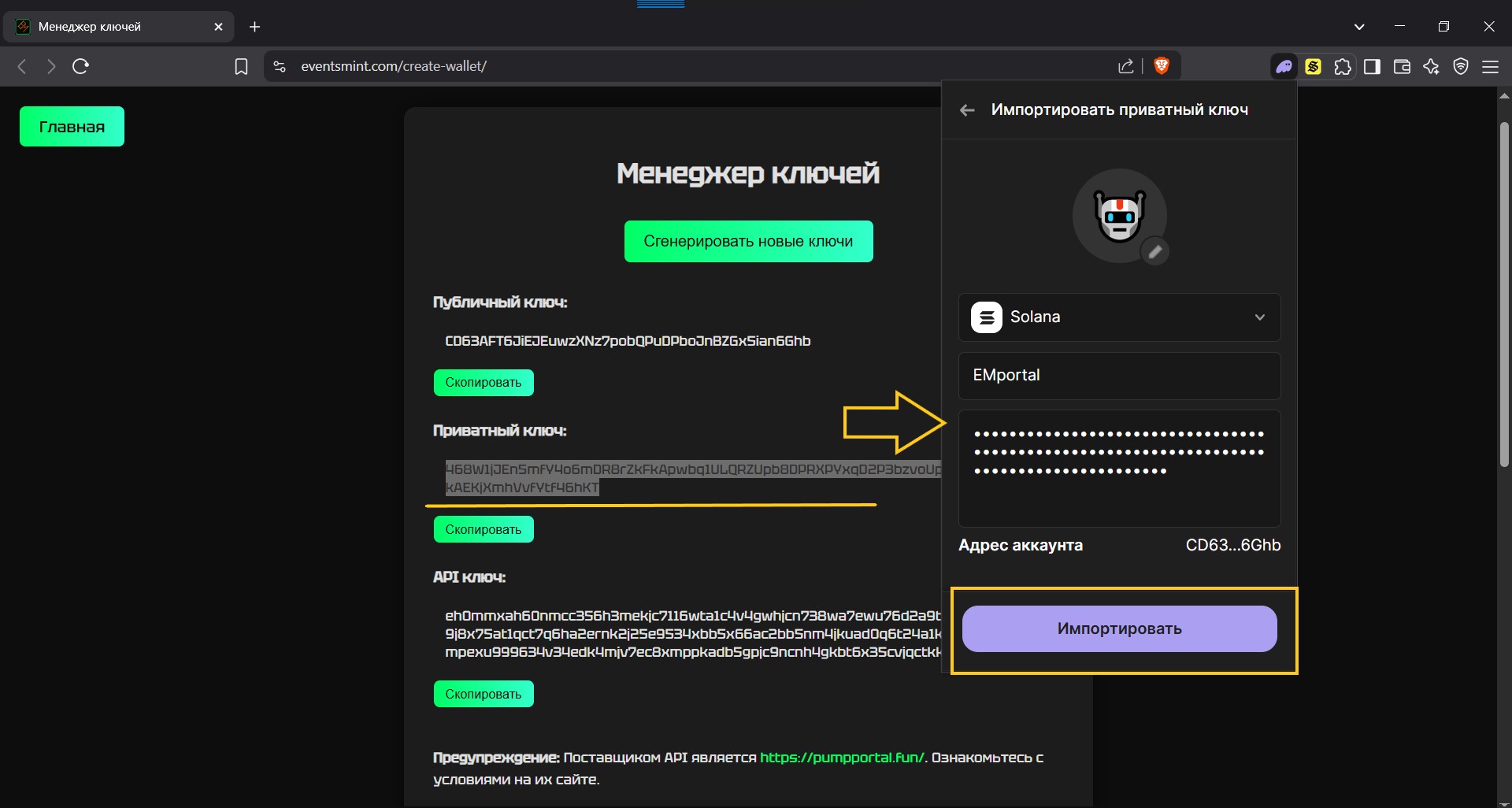
1.1.3. Import your private key generated on the page into the Phantom wallet.
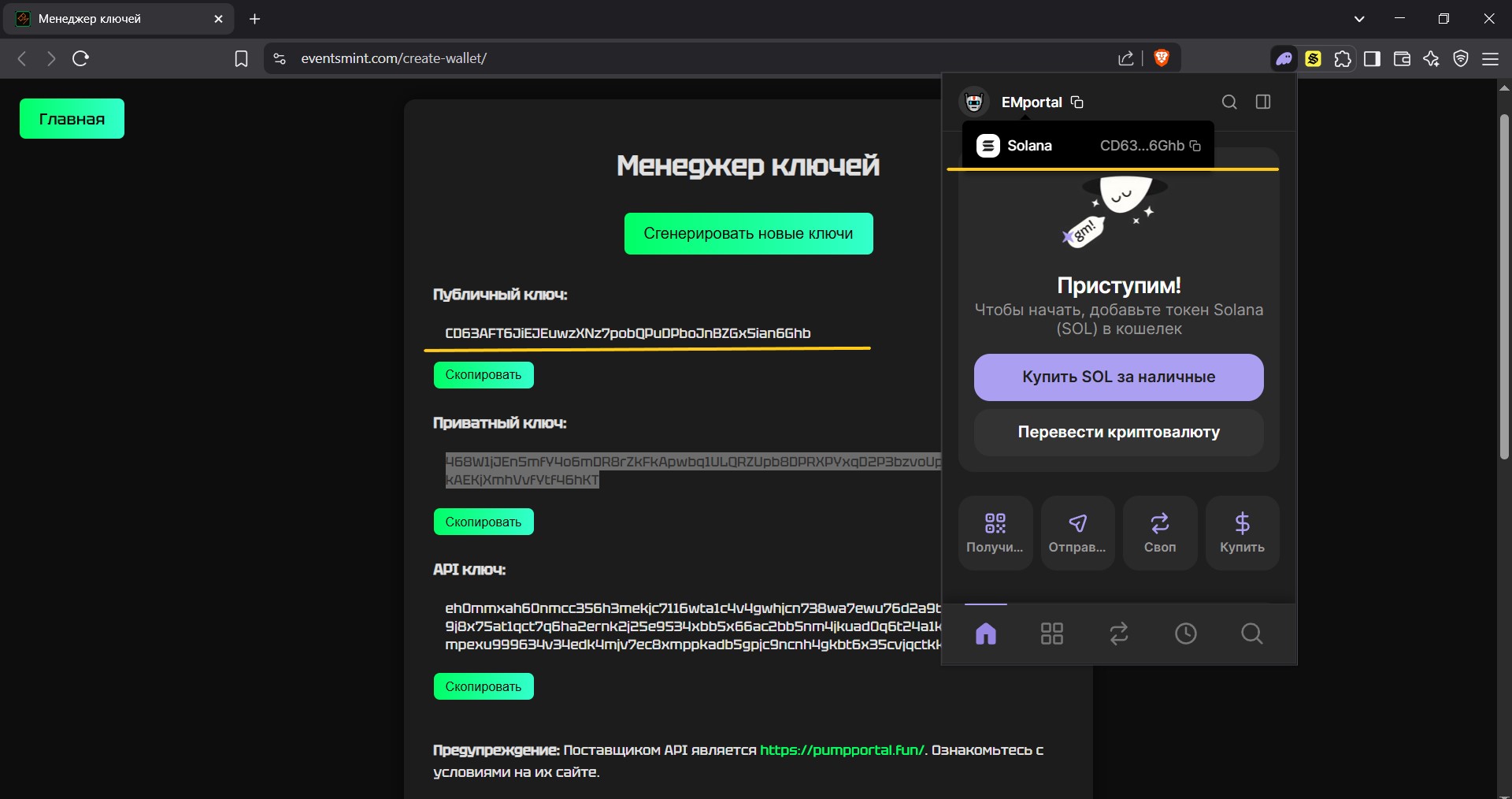
1.1.4. Top up the wallet balance with native Solana network coins in any convenient way.
1.2 Getting started with EM Portal (method No.2 creating a wallet through the API provider's website)
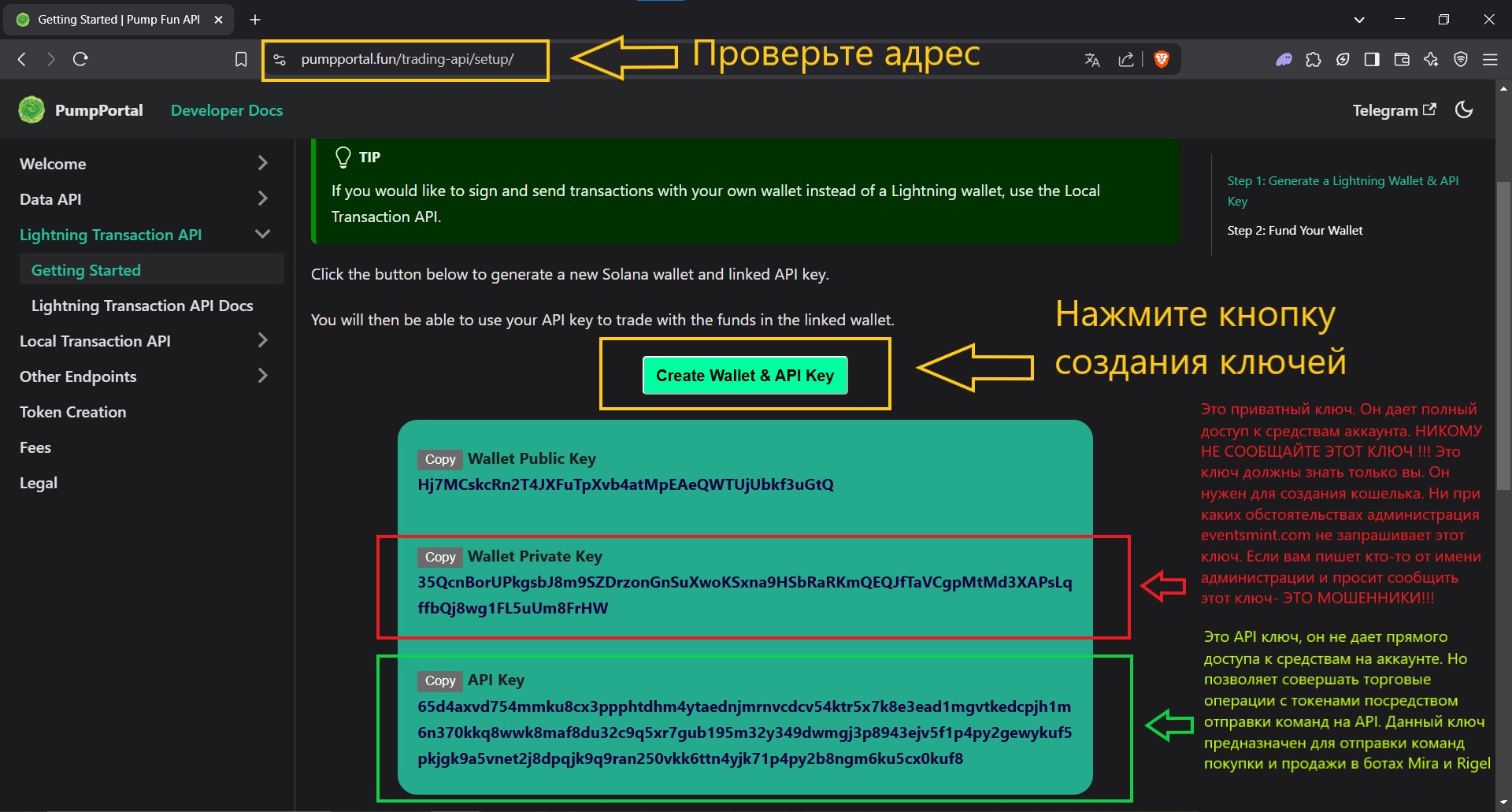
1.2.1. Follow the link https://pumpportal.fun/trading-api/setup and generate:
- Wallet Private Key (private key is your main secret. Keep it in a safe place. Do not tell anyone about it.)
- API Key (key for placing trading orders. Allows you to make transactions from your account. Required for working on the portal.)
1.2.2. Install the Phantom wallet from the browser extensions store or from the developer's official website.
IMPORTANT! Make sure the source is authentic. Do not install extensions from unverified places.
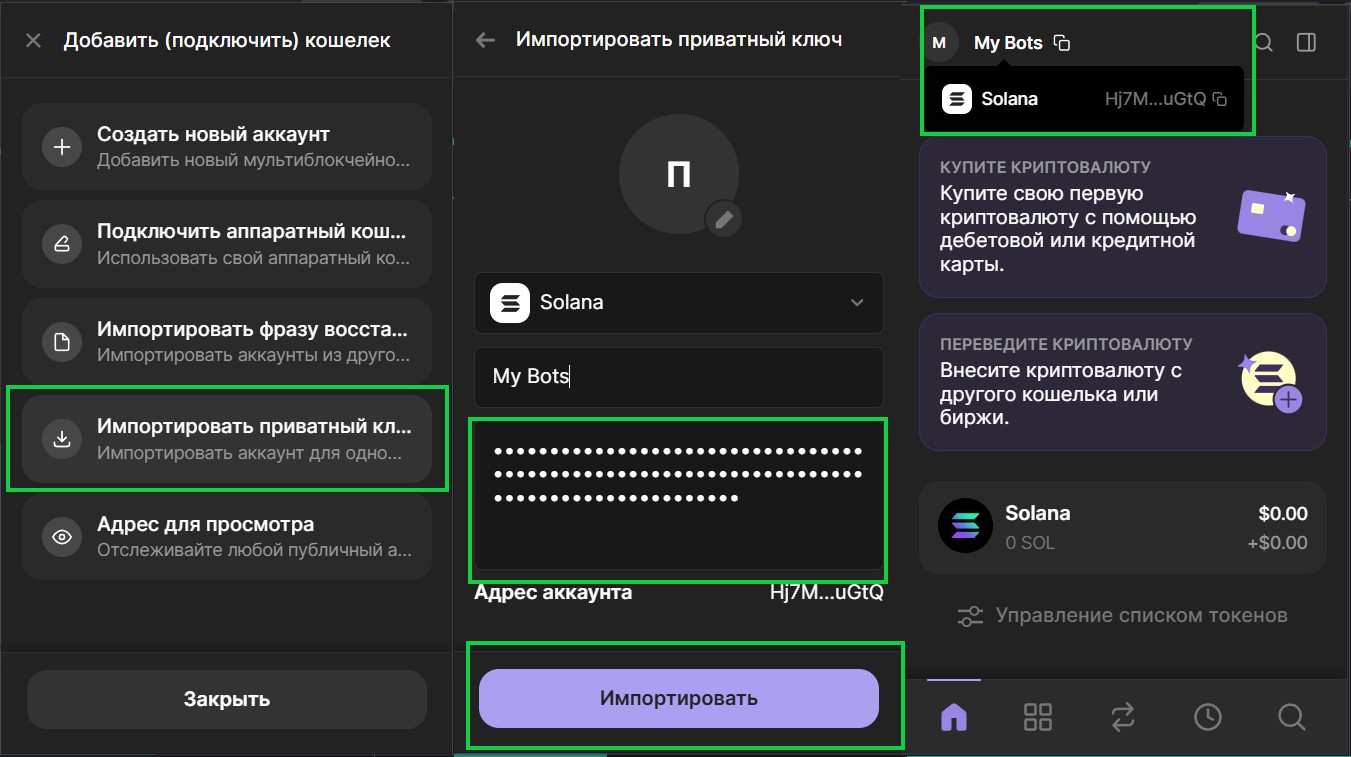
1.2.3. Import your private key (Wallet Private Key), generated on the page https://pumpportal.fun/trading-api/setup, into the Phantom wallet.
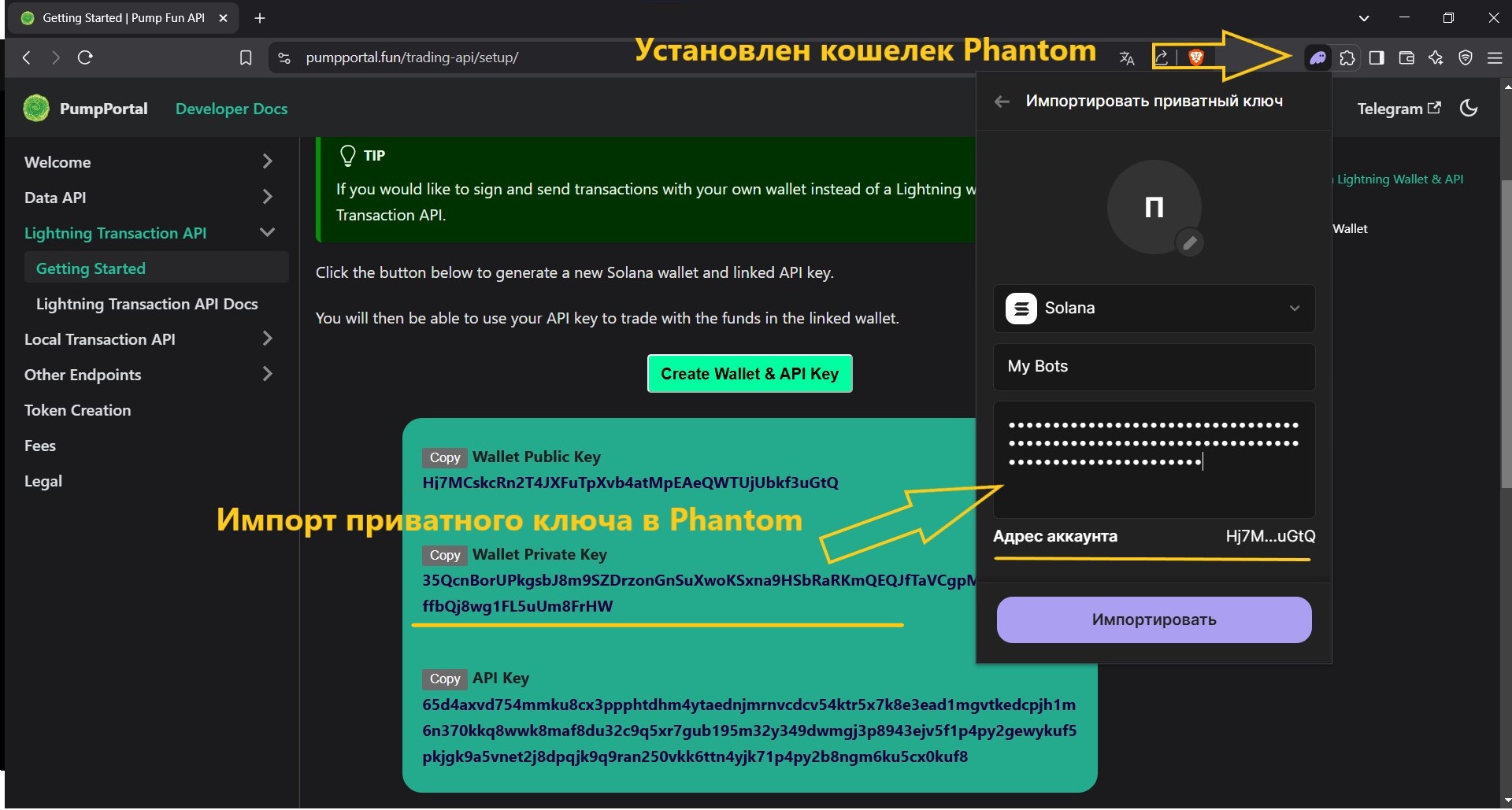
1.2.4. Top up the wallet balance with native Solana network coins in any convenient way.
1.5. Make sure your wallet has enough SOL to pay for the subscription and trading.
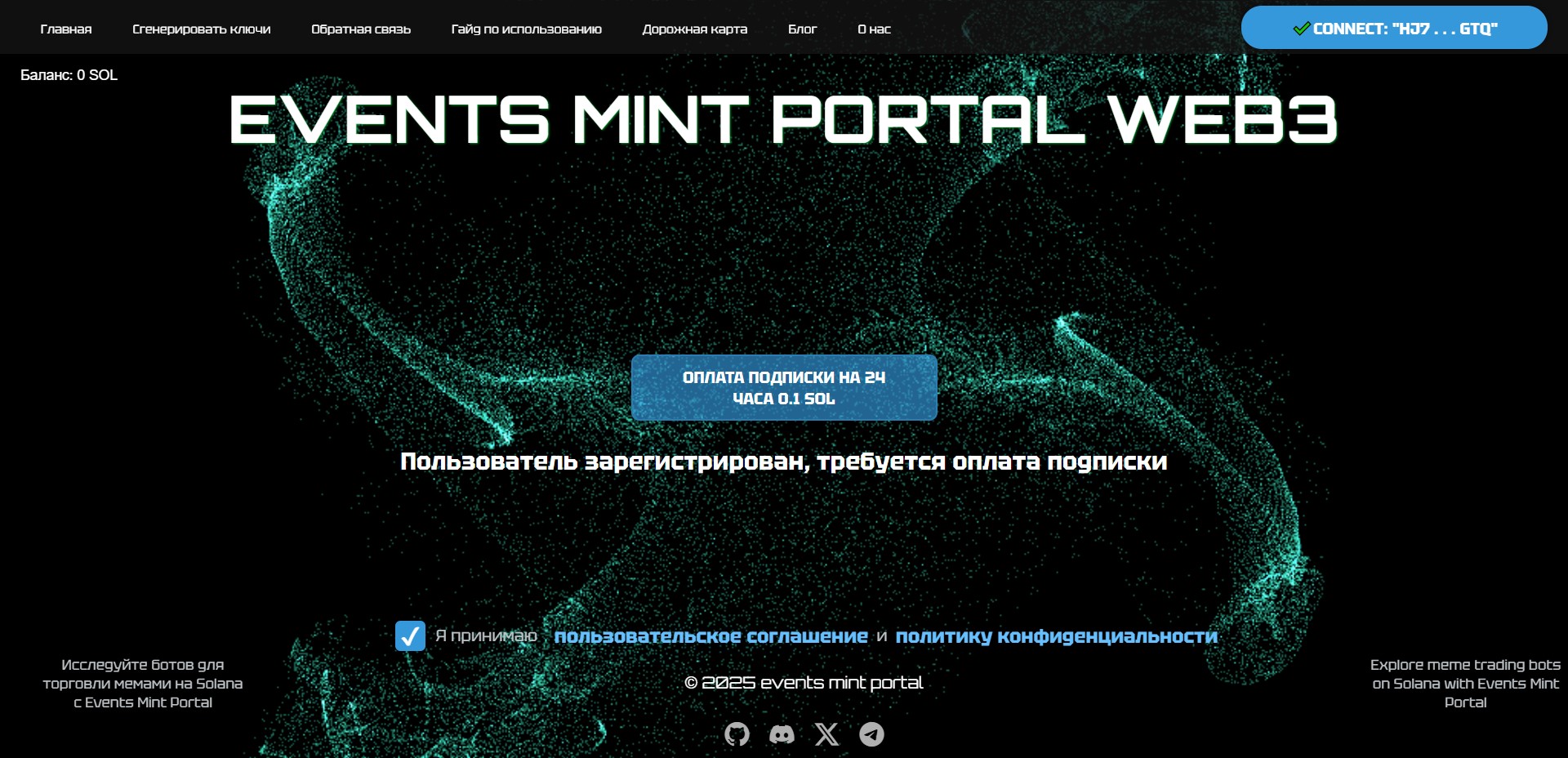
1.6. On the page eventsmint.com familiarize yourself with the User Agreement and Privacy Policy. If you agree to the terms:
- Check the consent box and click "Login via Phantom".
- If you disagree — immediately leave EM Portal.
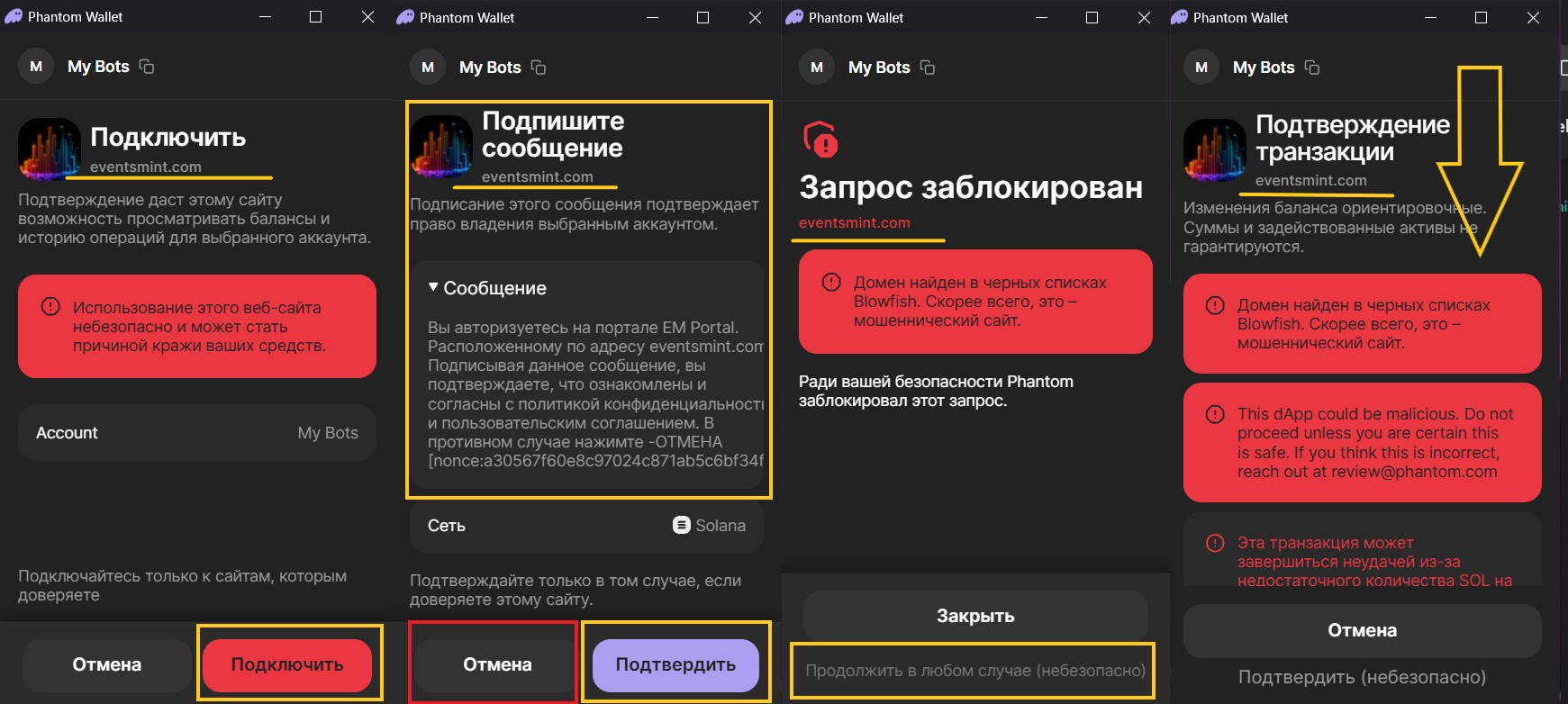
- After clicking "Login via Phantom", the server will send a request with an authentication message. Read it carefully and, if you agree, sign it in the Phantom wallet.
- On first authentication from a new account, a user account is created. The signature confirms wallet ownership and the right to manage funds. The signature is not saved.
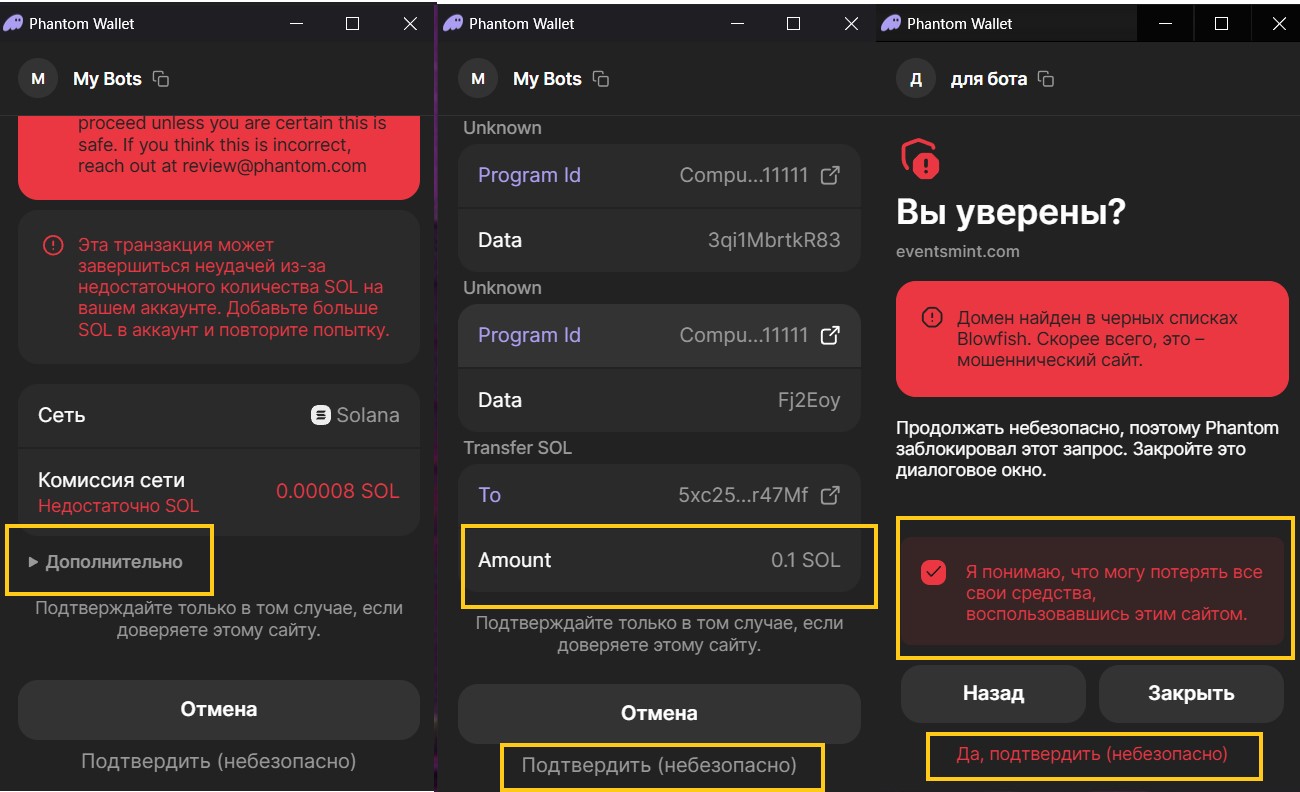
- After successful verification, the "Pay subscription for 24 hours — 0.01 SOL" button will appear. Clicking it generates a transaction for signing in Phantom. IMPORTANT! Check the transaction details: the amount should be exactly 0.01 SOL. If the amount differs, close the wallet and contact administration via the feedback form.
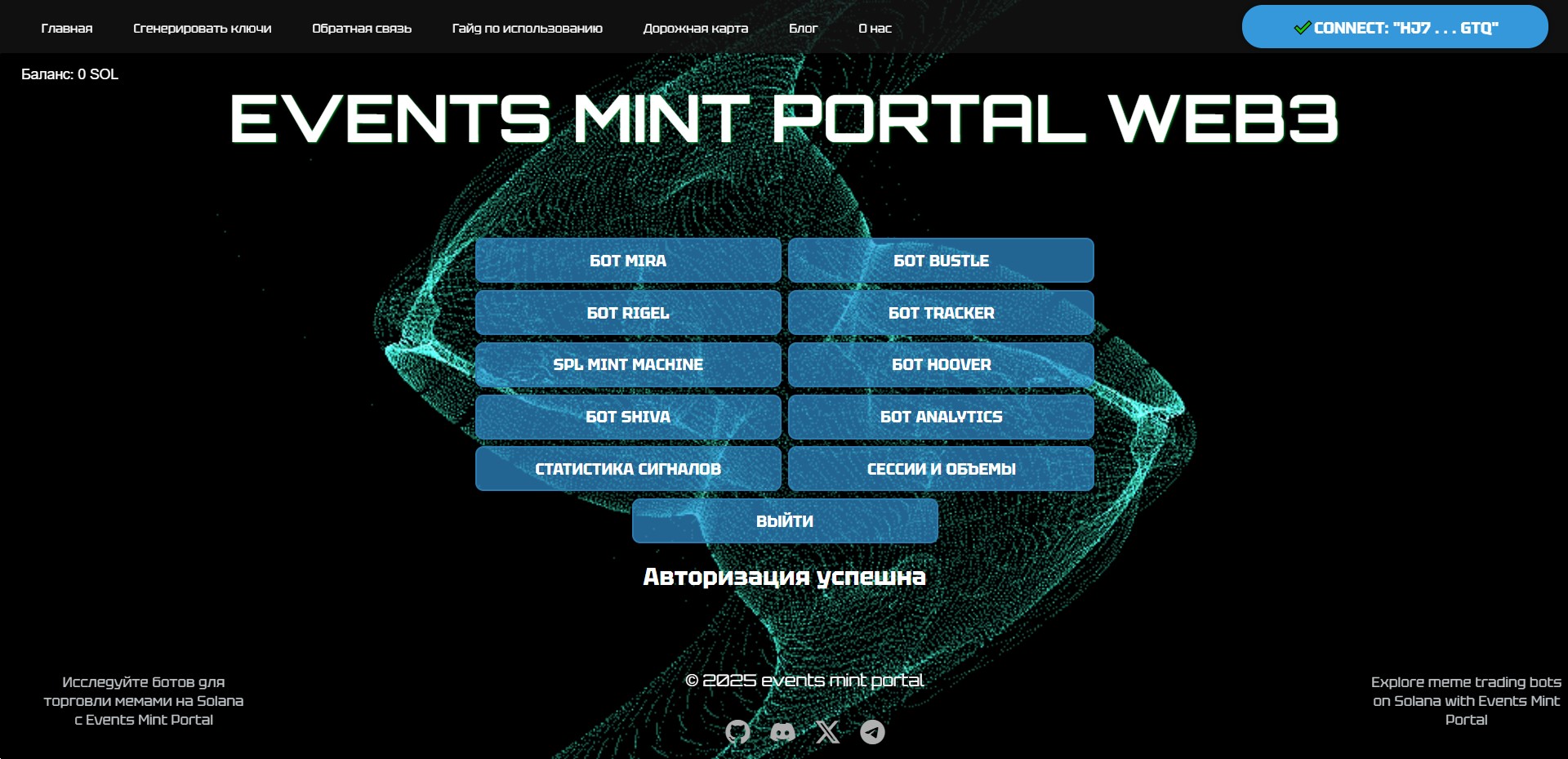
- After successful transaction broadcast, you will receive a hash that can be checked in the blockchain explorer. Keys for access to EM Portal bots and trackers will be generated (used automatically). Buttons will appear:
- "Go to Mira bot service" (redirect to Mira page);
- "Go to Rigel bot service" (redirect to Rigel page);
- "Go to Tracker bot service" (redirect to Tracker page);
- "Logout" (removes access keys; re-authentication required for new login).
The subscription counter will start counting 24 hours. After expiration, keys are invalidated, access is terminated. To renew, pay for the subscription again.
2. Getting started with Shiva bot
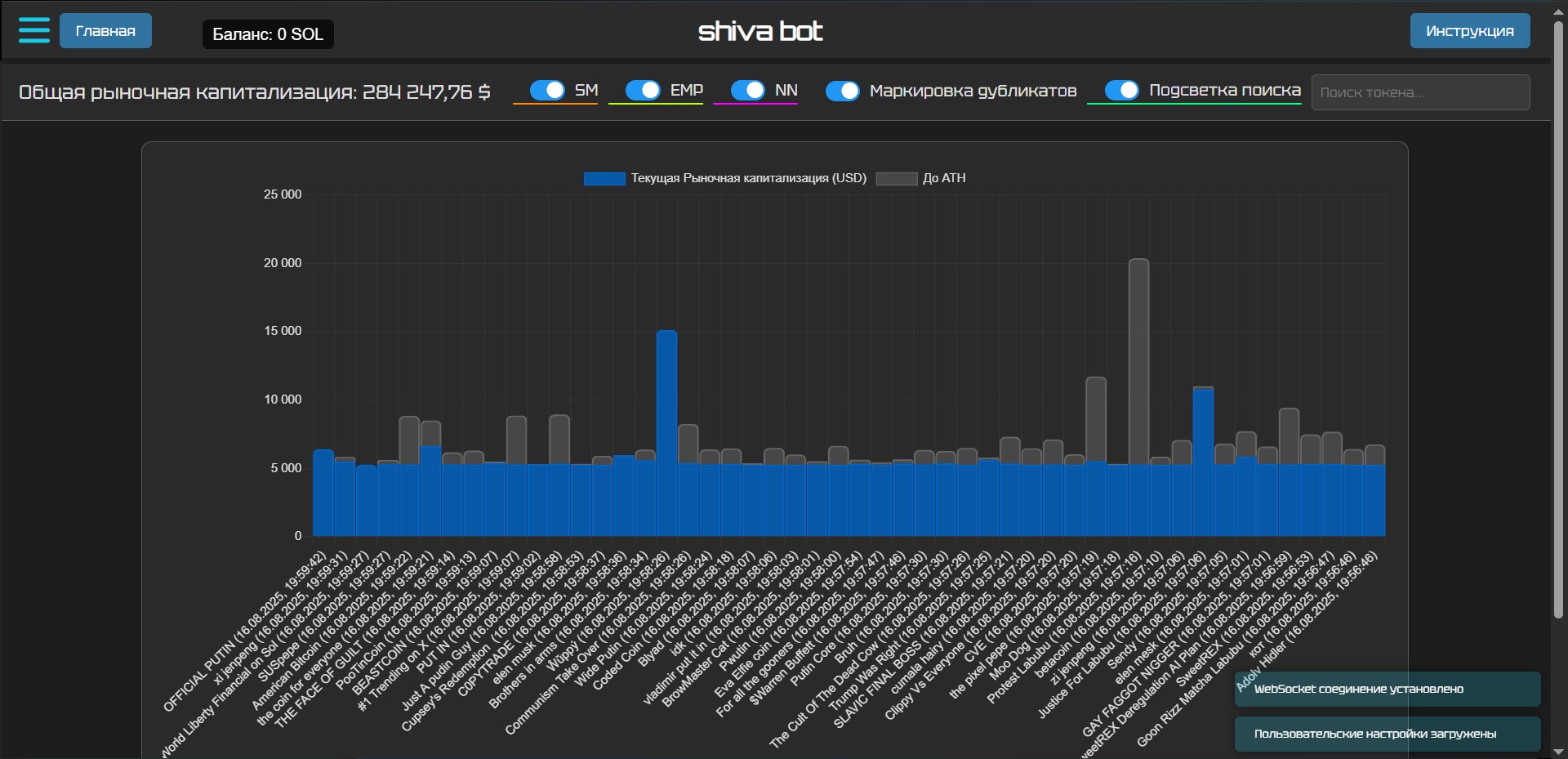
2.1. Go to the Shiva bot page. On first login, messages will appear in the bottom right corner:
- "User settings loaded" (a record with default settings was created, successfully loaded into the interface);
- For trading, you need an API Key generated by the user in the previous step. ATTENTION! Do not confuse with Wallet Private Key!.
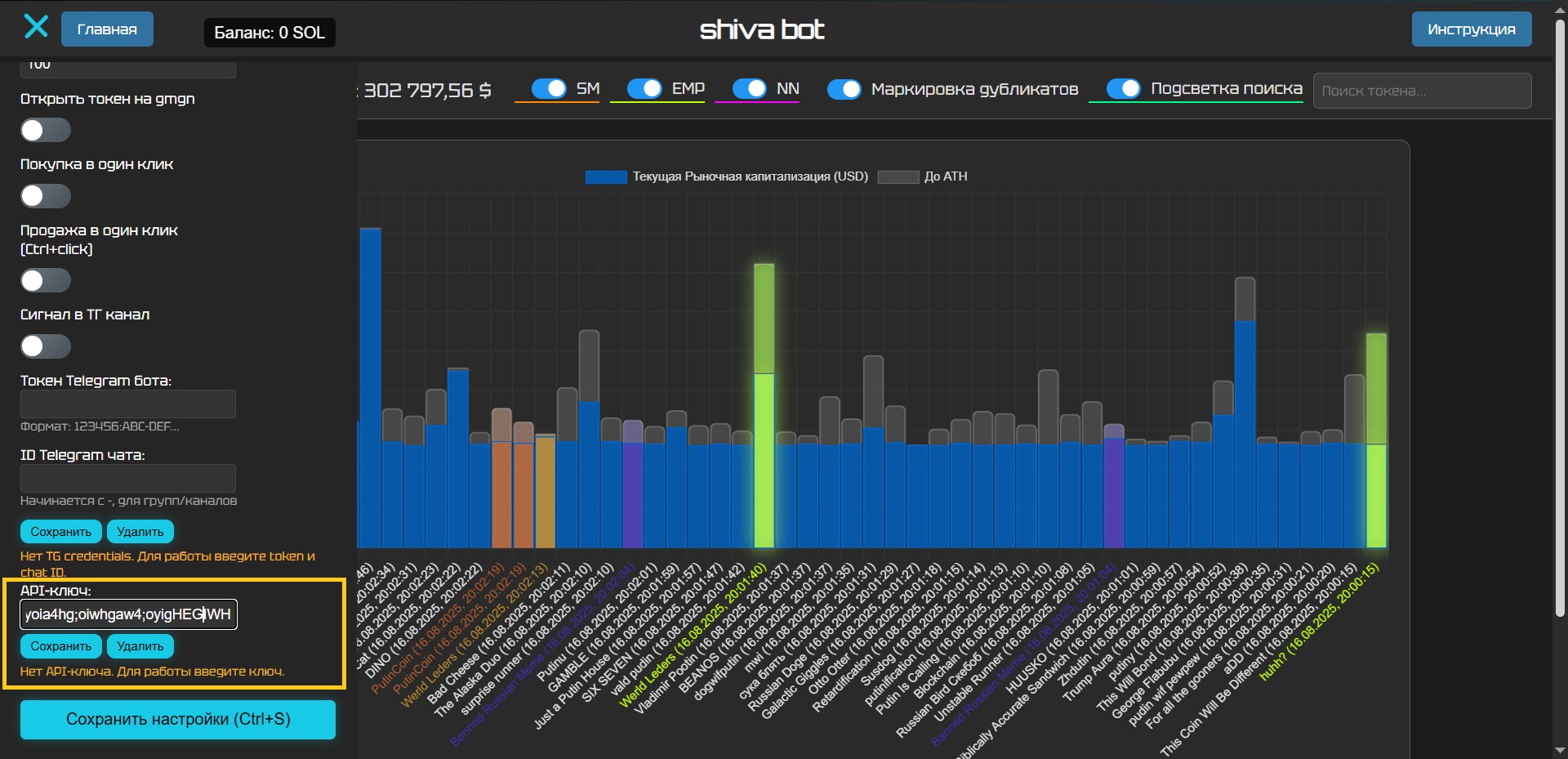
2.2. Open settings (icon in the top left corner). If fields are not visible, refresh the page.
2.3. Scroll to the "API key:" field. Paste your API Key generated via Generate keys or https://pumpportal.fun/trading-api/setup and click "Save". On success, "API key saved" message will appear.
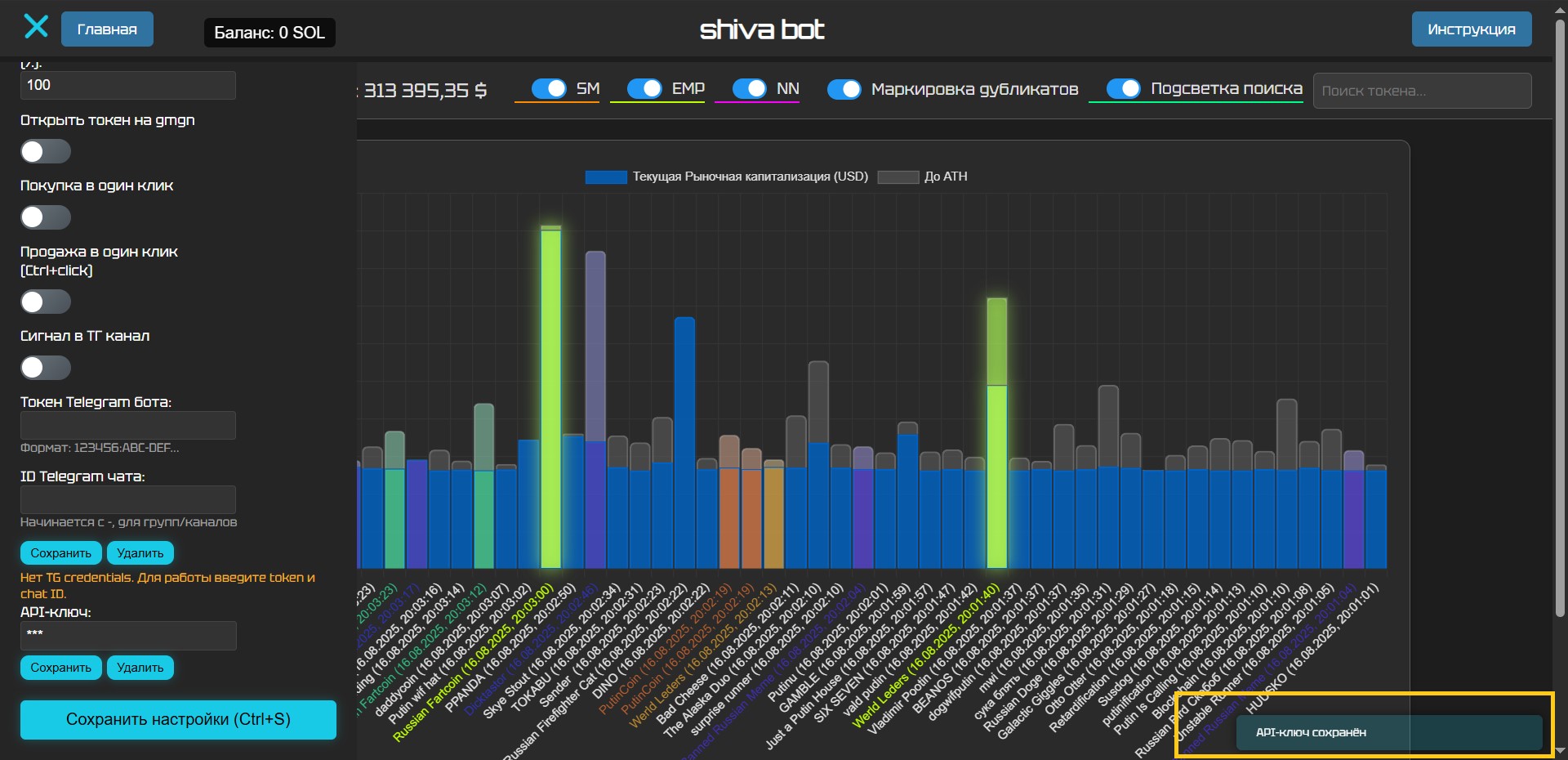
Shiva bot is ready to use!
3. Getting started with Rigel bot
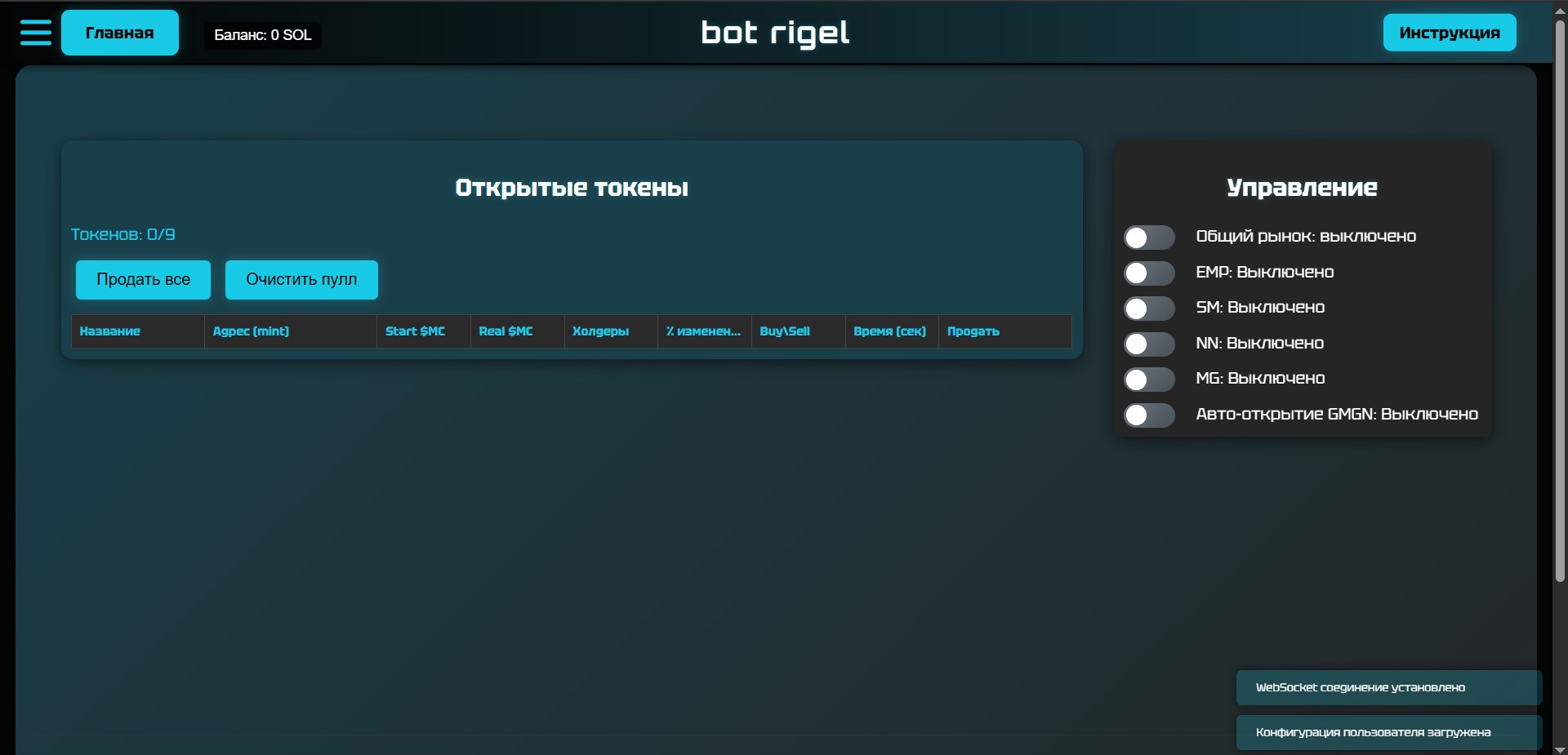
3.1. Go to the Rigel bot page. On first login, messages will appear in the bottom right corner:
- "User configuration loaded" (a record with default settings was created);
- "Websocket connection established".
3.2. Open settings (icon in the top left corner). If fields are empty, refresh the page.
3.3. Scroll to the "API key" field. Paste API Key generated via Generate keys or https://pumpportal.fun/trading-api/setup. ATTENTION! Do not confuse with Wallet Private Key! Click "Save" On success — "API key saved".
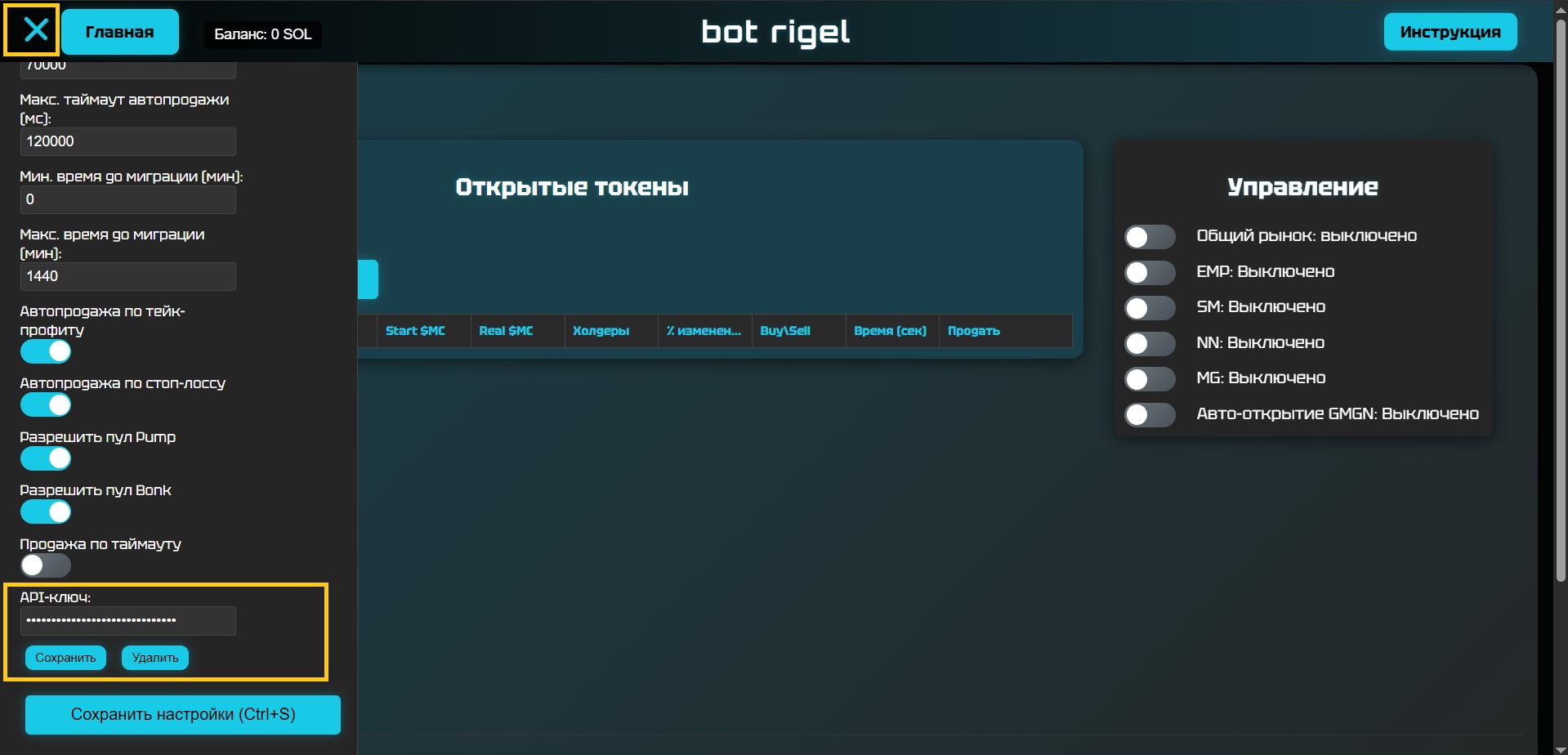
Rigel bot is ready to use!
Importing API key in other tools is done similarly. The key is saved separately in each tool
5. Fees
EM Portal does not charge trading fees.
Check Pumpportal.fun fees on https://pumpportal.fun/fees.
Gas fee is set by the user.
6. Subscription cost for EM Portal
Subscription — 24 hours, counting starts from the broadcast of the payment transaction.
Example: payment on 10.01.2025 at 13:40 → expiration on 11.01.2025 at 13:40.
Payment only on eventsmint.com. Other sources — scam!
IMPORTANT! Use the wallet generated via Generate keys or https://pumpportal.fun/trading-api/setup, imported into Phantom. Payment and API Key must be from the same wallet.
More about keys: https://pumpportal.fun/trading-api/setup.
7. Frequently asked questions
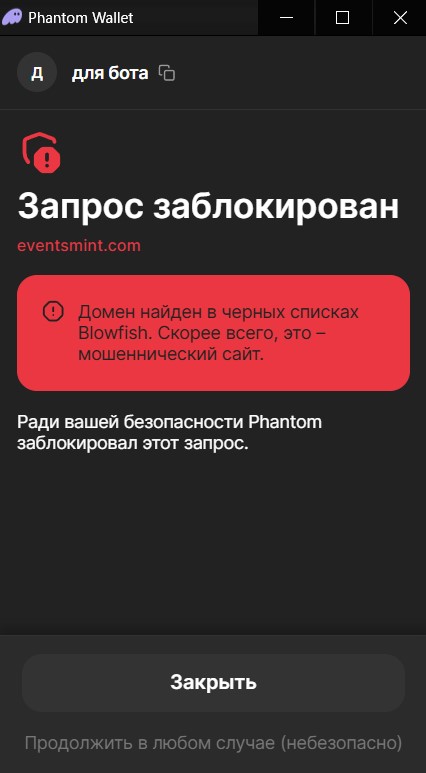
- Why does Phantom mark the site as suspicious?
- Phantom protects users by automatically considering new domains unsafe. Add eventsmint.com to the whitelist by selecting "Proceed anyway". EM Portal developers are working on adding the domain to Phantom's list. IMPORTANT! Check messages and transactions before signing. Do not follow suspicious links.
- Why can't I trade from an existing wallet? Why a new one?
- Trading via Pumpportal.fun API requires an API Key linked to the private key. API fee is deducted automatically. Keep large amounts on cold wallets, use trading wallet only for small amounts. EM Portal is not affiliated with Pumpportal.fun and does not guarantee its stability. Review https://pumpportal.fun/ before use.
- What data does EM Portal store?
-
- Public key (public wallet address);
- Time of last subscription payment;
- Transaction hash (encrypted);
- User settings;
- API Key (encrypted, saved optionally).
- Shiva: Settings → "API key" → "Delete"
- Rigel: Settings → "API key" → "Delete" - Cookies are needed for authentication and portal operation, do not collect personal data.
- "Your token is expired": refresh the page (F5). If it doesn't help, on the main page click "Refresh".
- Paid subscription, left after 2 hours, returned after 8 — again "Login via Phantom"?
- Subscription is valid for 24 hours from payment. Sign the message again, access will be restored for the remaining time (e.g., 14 hours).
- Why EM Portal if you can trade on gmgn.ai or pump.fun?
- Manual trading is slow (5–15 seconds), bots via API — 100–500 ms. Low ping (30–50 ms) is critical. Avoid mobile internet (200–500 ms).
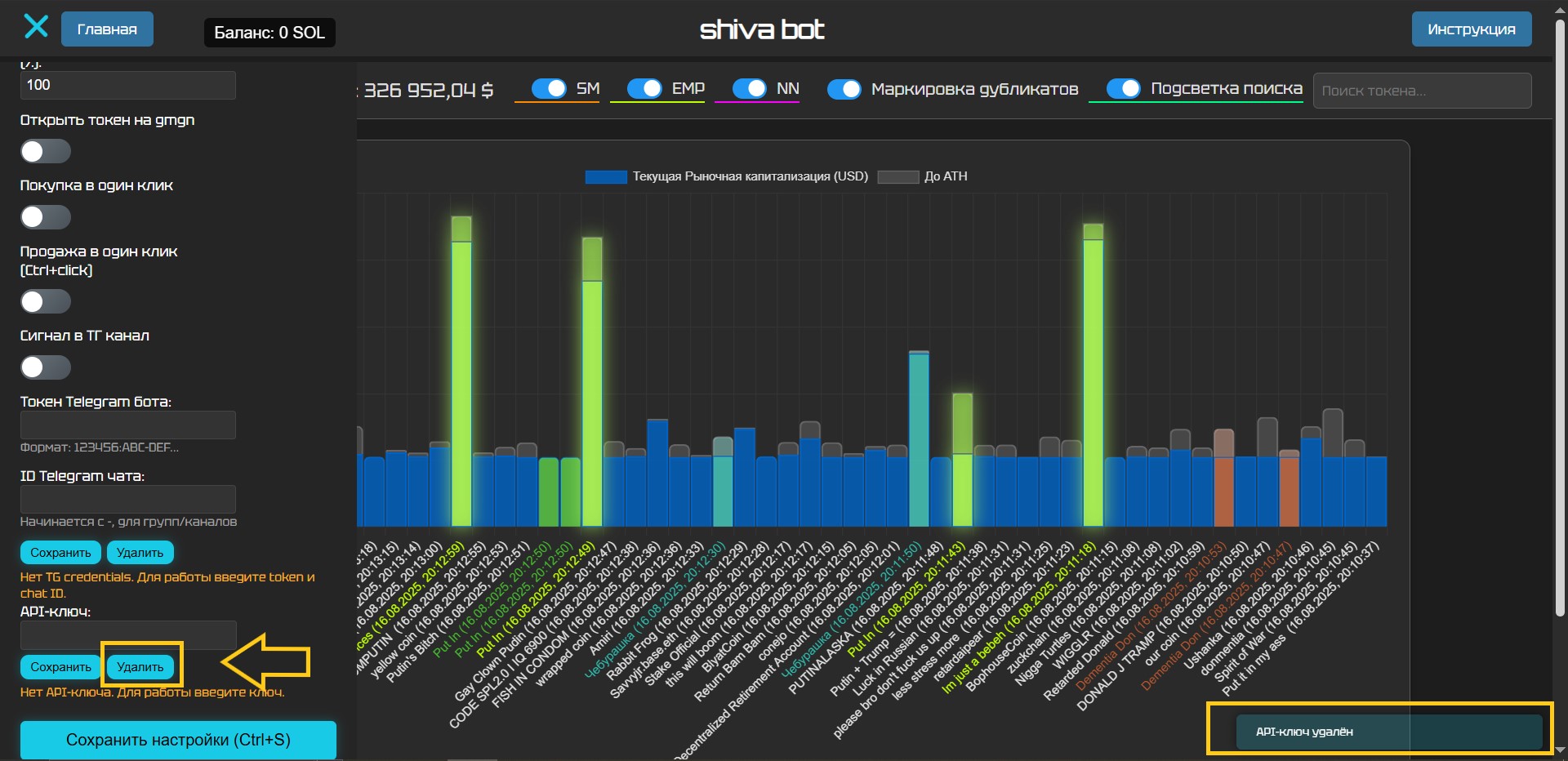
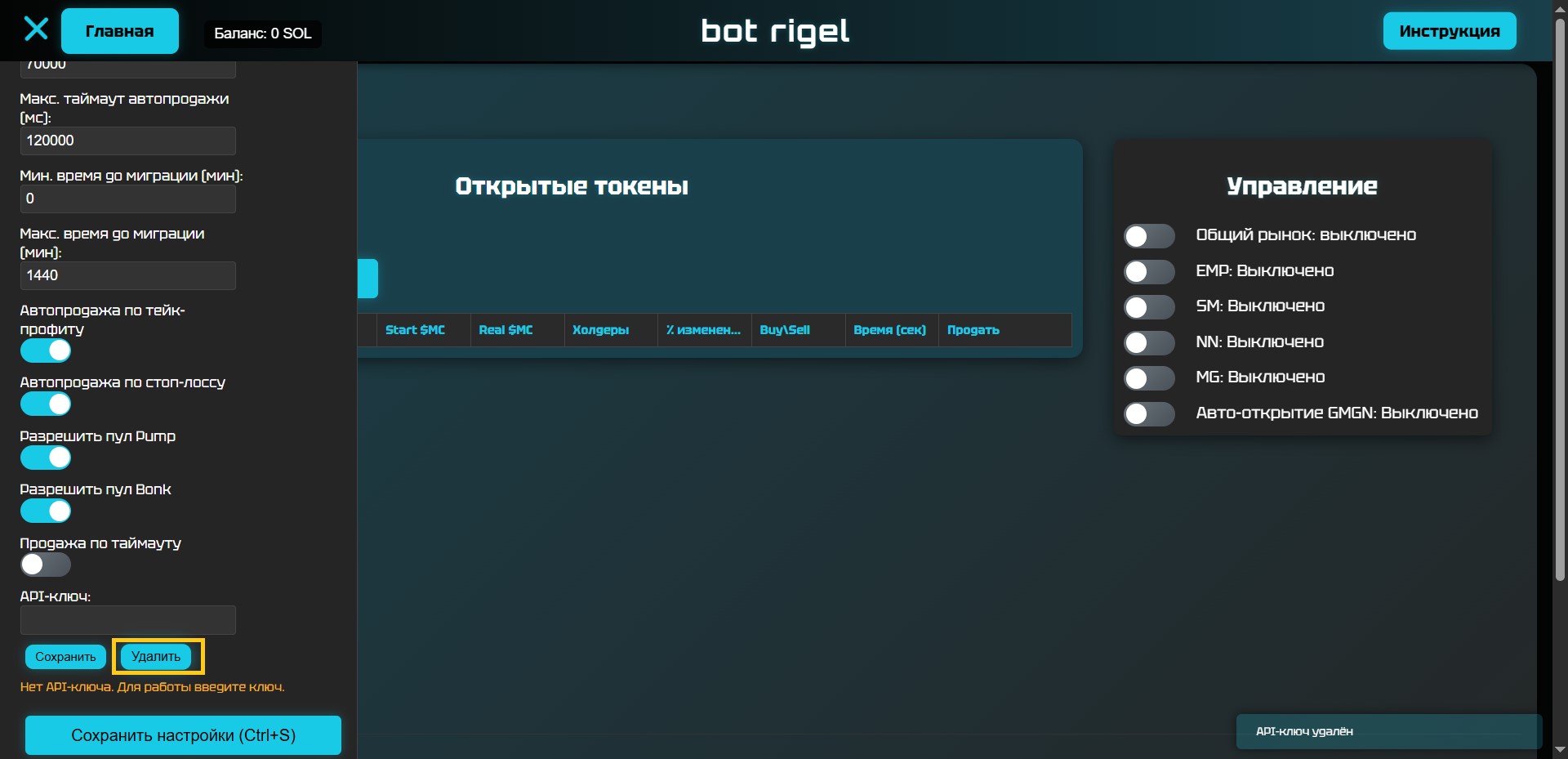
IMPORTANT! EM Portal is not an exchange, does not store funds and does not perform operations. It is an interface for working with Pumpportal.fun API. All actions are at your own risk. More details: https://pumpportal.fun/trading-api/.